

Review and validate annotations
A model learns the mistakes of its dataset as well as the rest. The «Validate» tab of an object detection dataset shows every box as a small cut-out, class by class, so that a wrong tag stands out at a glance. In this guide you fix a box with the wrong tag, validate the rest and find a biscuit nobody boxed.
What you will learn
- How to review every box of a class at once
- How to fix the tag of a box, or delete it
- How to mark the boxes you have checked as validated
- How to find the objects nobody labeled
Before you start
You need an object detection dataset with boxes, normal or oriented. Here they came in a ZIP: see Upload a ZIP with tags and annotations.
1. Open the Validate tab
Open the dataset and go to the «Validate» tab. On the left, every tag with how many boxes it has. Choose one to review its boxes.
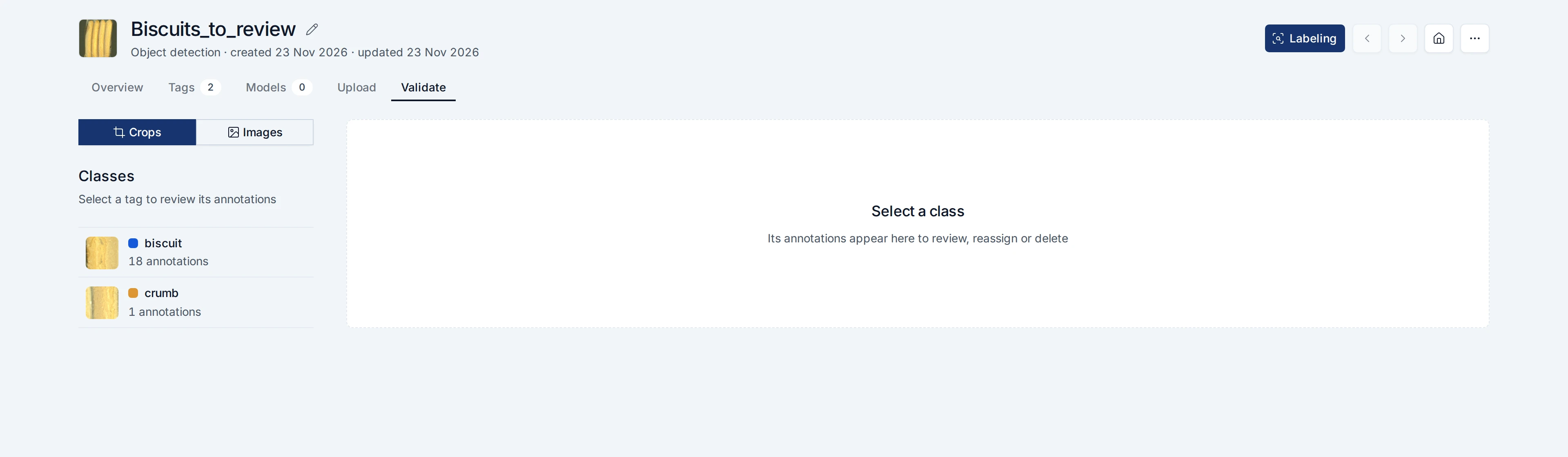
2. Review a class
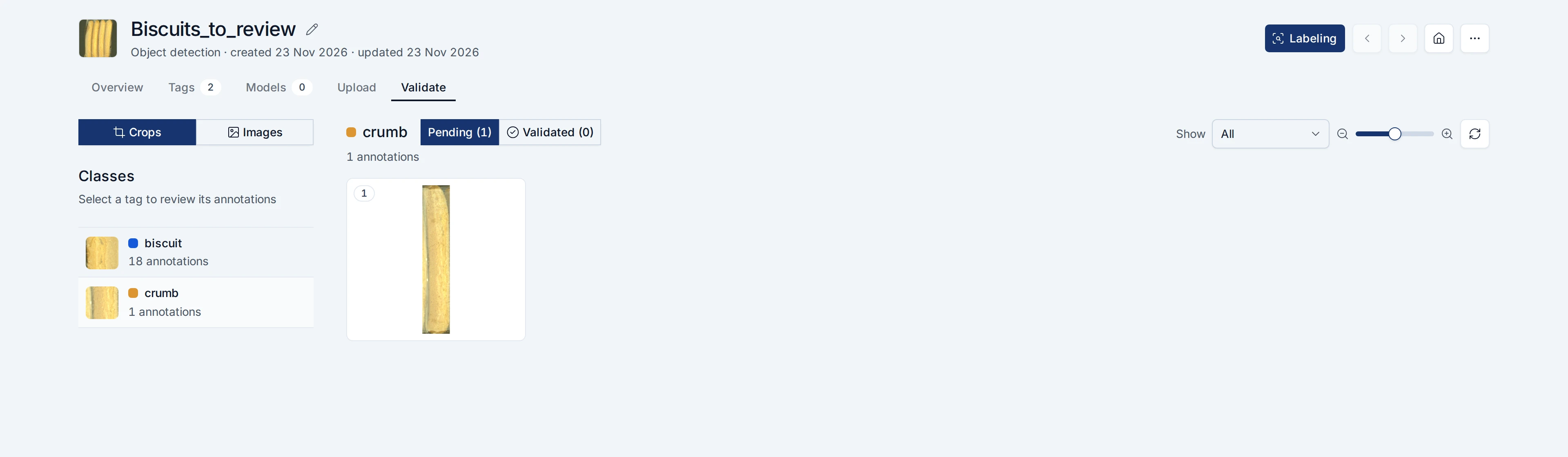
Click a class: each of its boxes appears as a crop of its image, so you can compare them side by side. Here the only «crumb» is clearly a whole biscuit: its tag is wrong.
3. Fix its tag
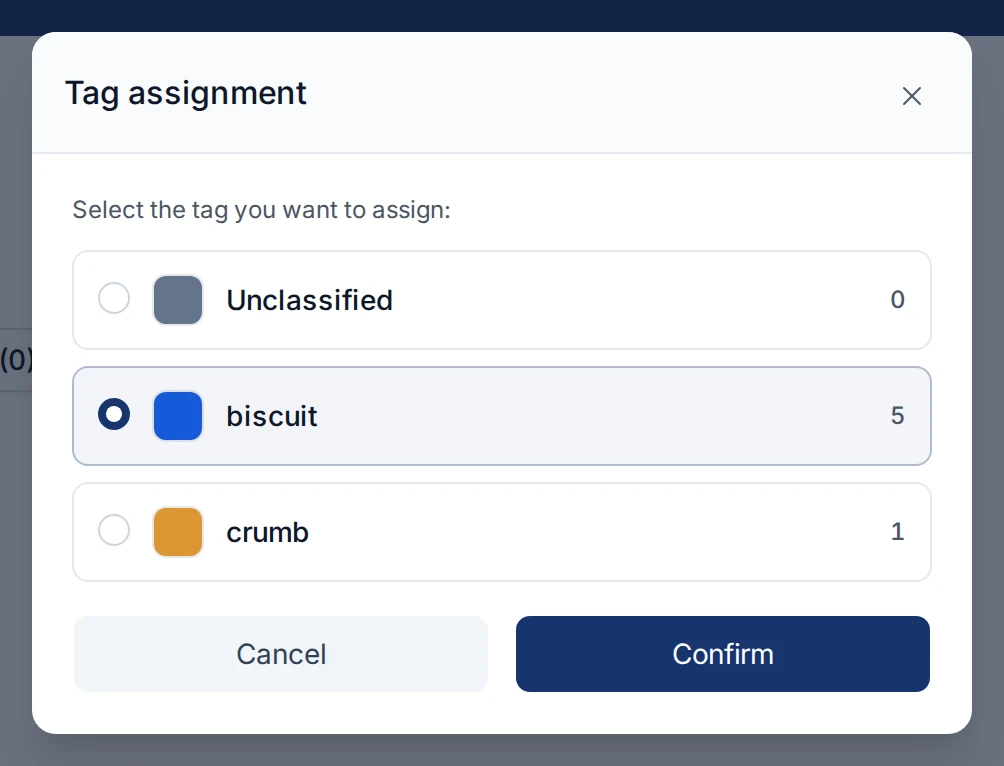
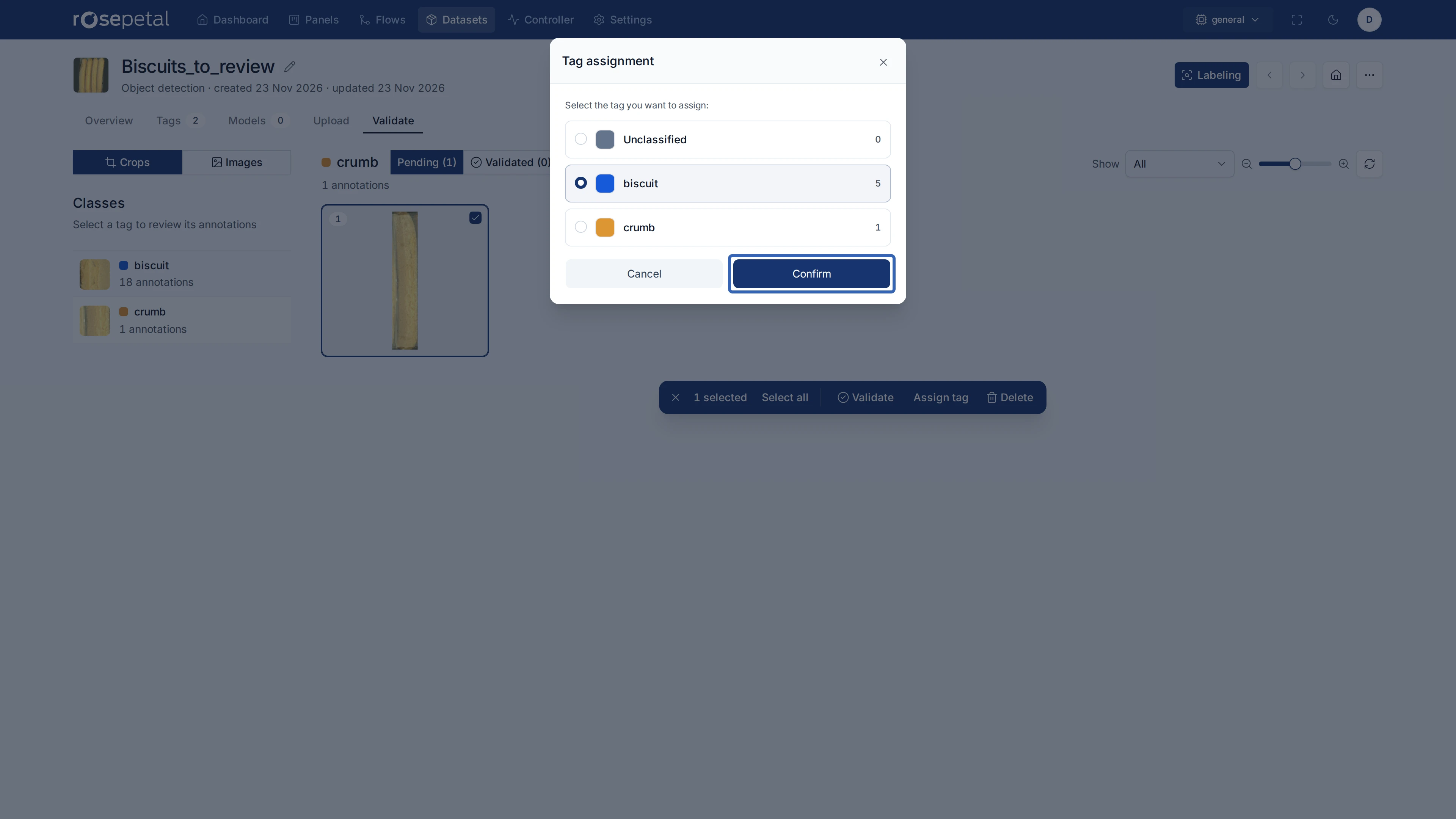
Tick the crop: a bar appears at the bottom. «Assign tag» gives the box another tag; «Delete» removes it. Choose «biscuit» and confirm.
4. Apply the change
Click «Confirm». The change is not written yet: a note counts the pending changes, and «Discard» drops them all. Click «Apply» to write them into the images.
5. Validate the boxes that are right
Open «biscuit». Its boxes are «Pending» until someone checks them. When they are right, select them, all at once with «Select all», and click «Validate»: they move to «Validated», so the next review only shows the new ones. The box you fixed is there already: a box whose tag you change counts as checked.
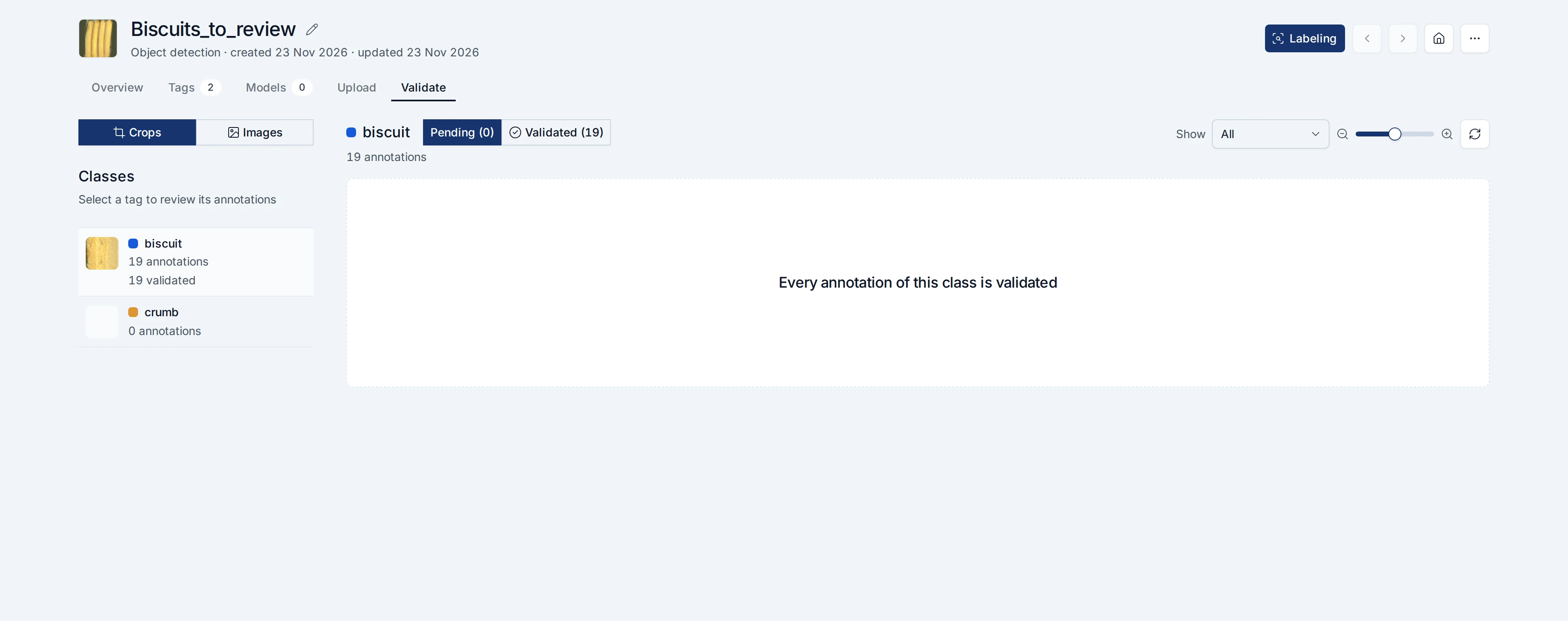
6. Find what nobody labeled
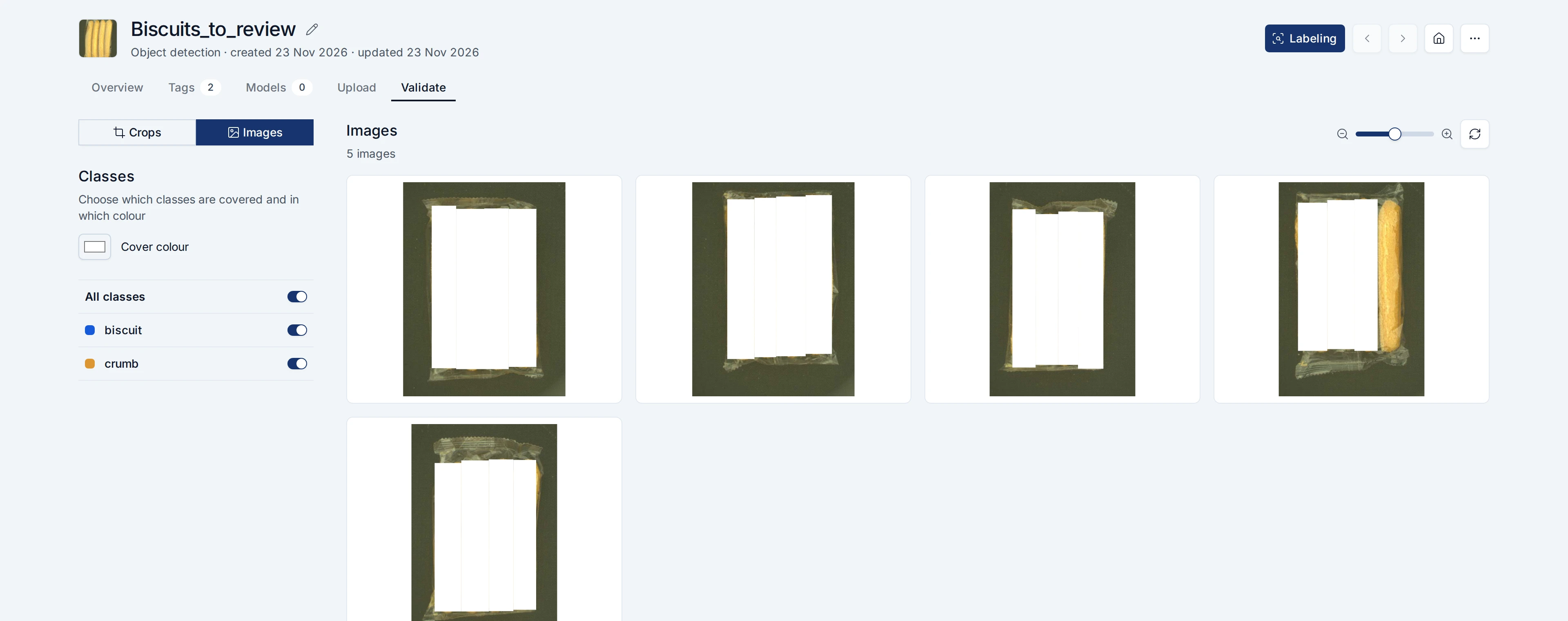
Switch the view to «Images». Every box is covered with the «Cover colour», so the objects nobody labeled are the ones still showing. Choose which classes to cover with the switches. Here the fourth pack, at the end of the first row, still shows a biscuit on the right: it has no box.
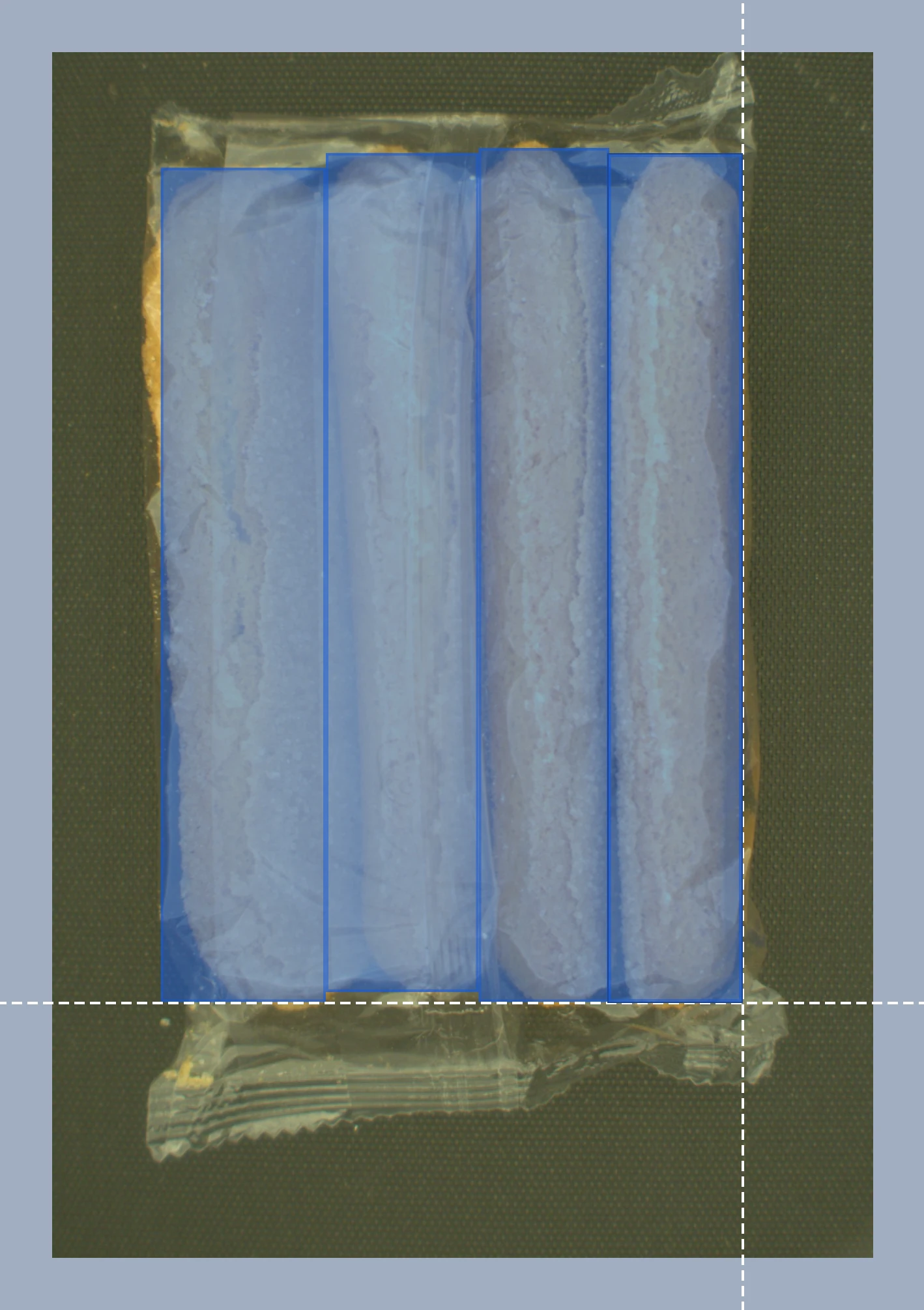
7. Draw the missing box
Click the image to open it in the editor, choose «Draw Bounding Box» and draw the missing box. Labeling boxes is explained in Label objects with bounding boxes.
Good to know
- Show. Above the crops, «Show» narrows them down to the modified or deleted ones before you apply, and the slider makes them bigger or smaller.
- Back to pending. In «Validated», select crops and click «Back to pending» to review them again.
- Images that changed meanwhile. If someone edits an image between your review and «Apply», that image is skipped and the note says so: review it again.
- Which datasets. The tab works in object detection datasets, with normal or oriented boxes.
Next steps
Recorded on Rosepetal release 1.8.15.